Creased 1950s wedding
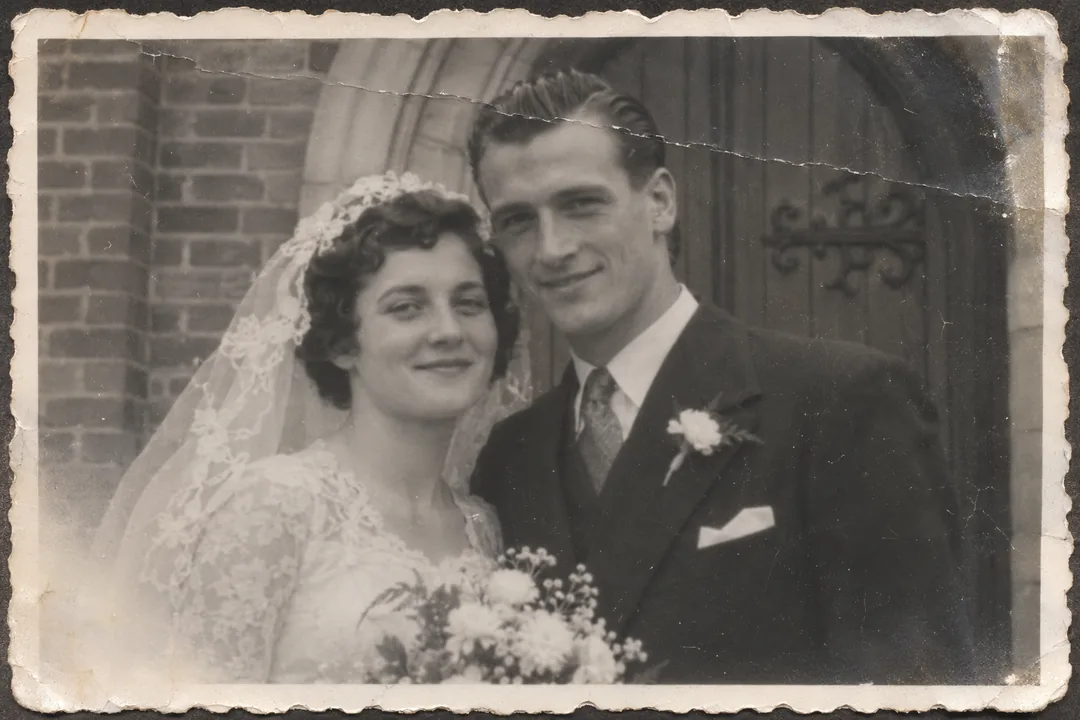
Damaged
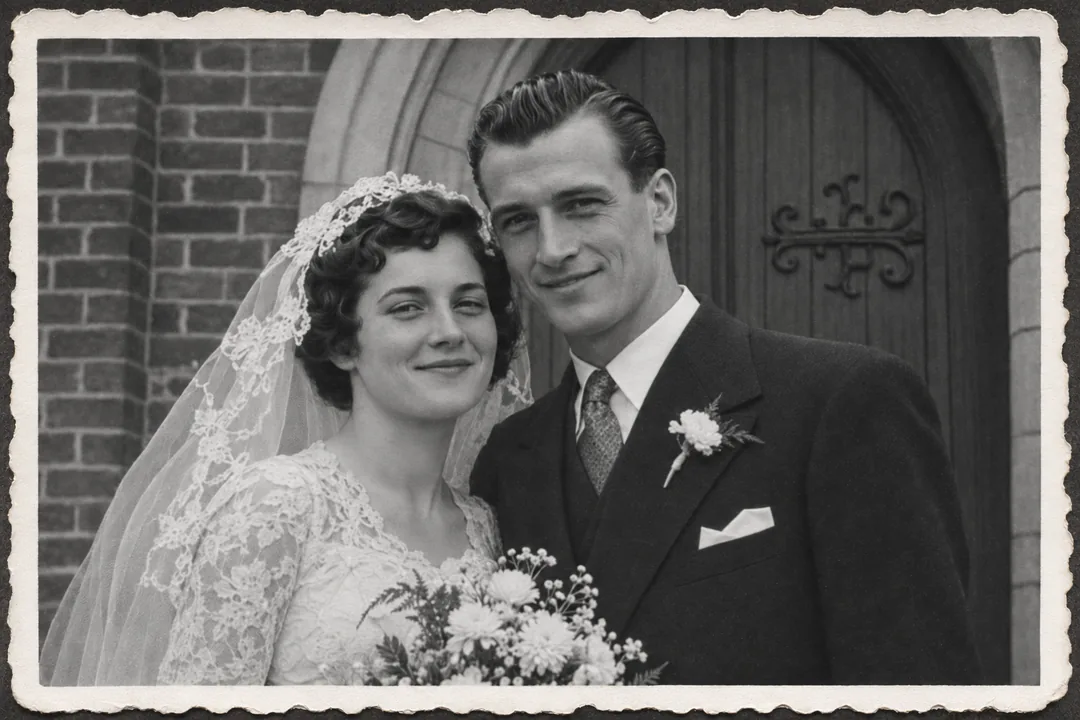
Repaired
Repaired
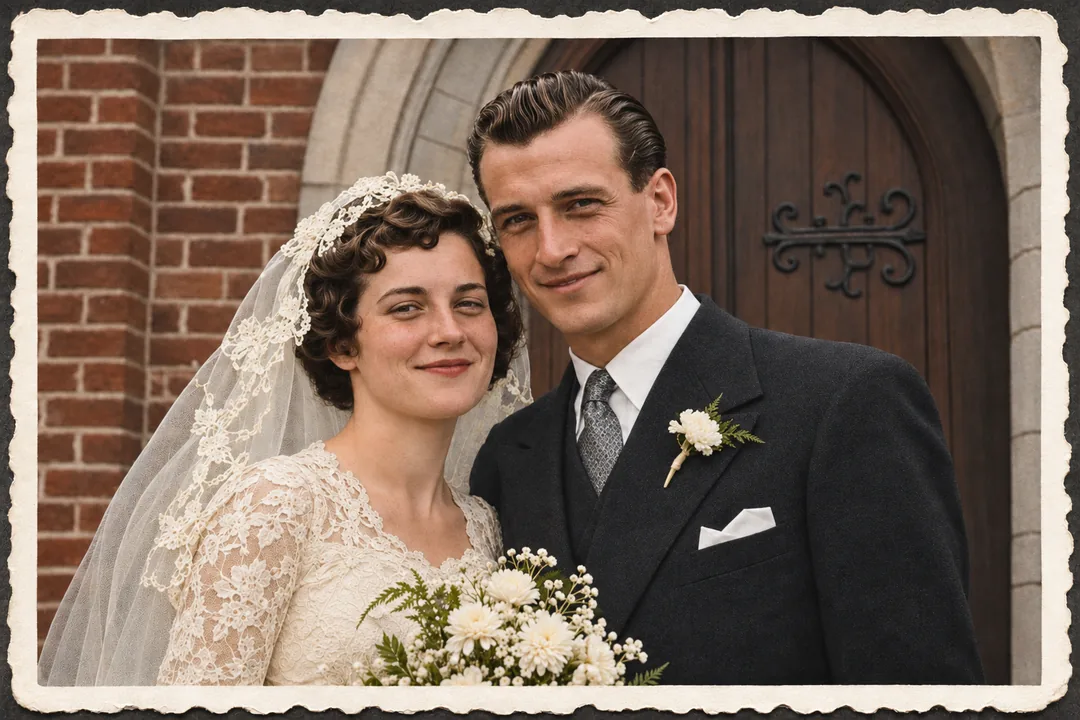
Colorized
Upload a scan or a phone photo of the print, pick Repair only or Repair + color, press Generate, then download it or turn it into a short video.
This session
My creations Your results appear here. Every result is also saved in My creations; if a run fails, the credits go back to your balance.
Two prints restored here: a creased 1950s wedding portrait shown damaged, repaired, colorized and as a 5-second clip, and a yellowed 1970s porch snapshot brought back to neutral color.
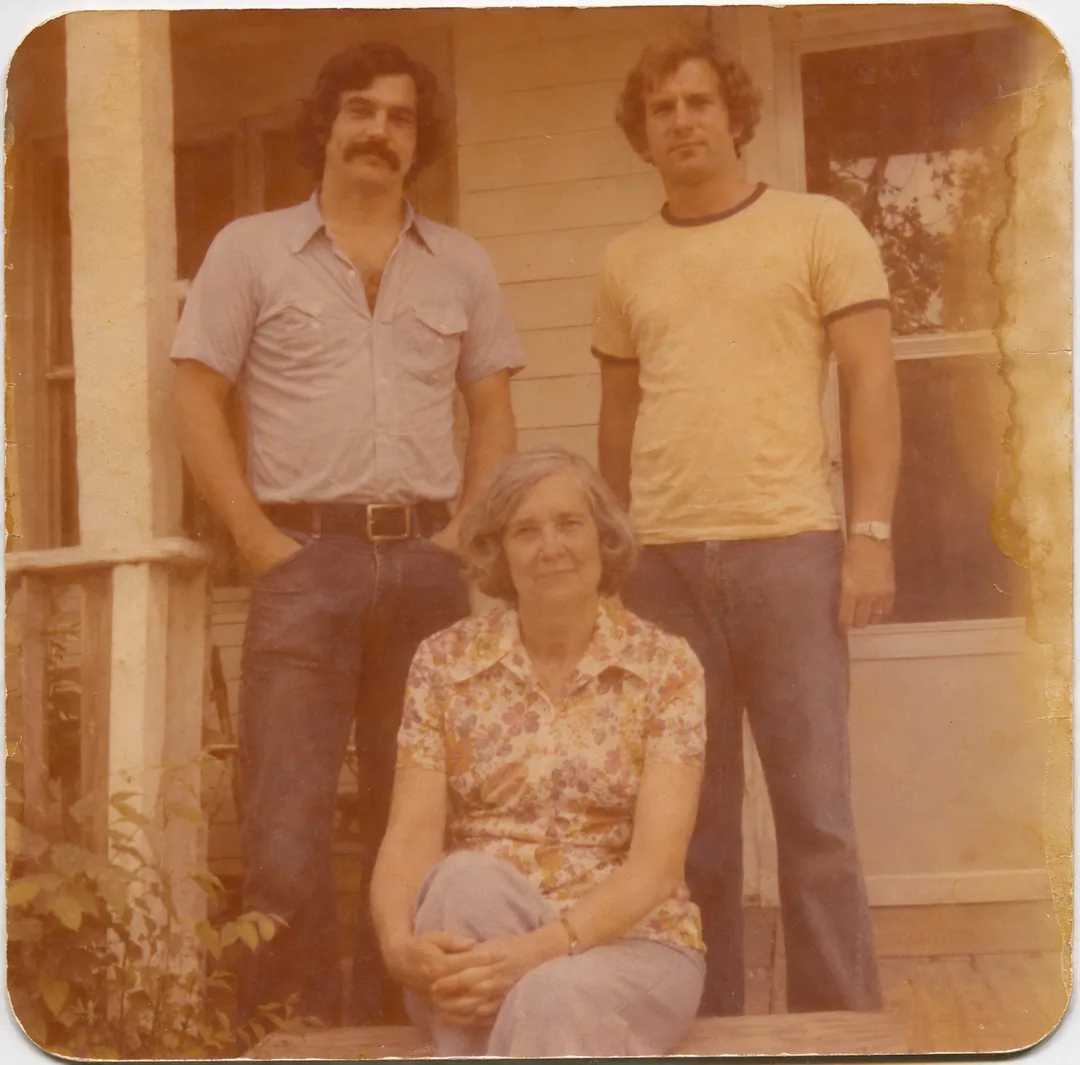
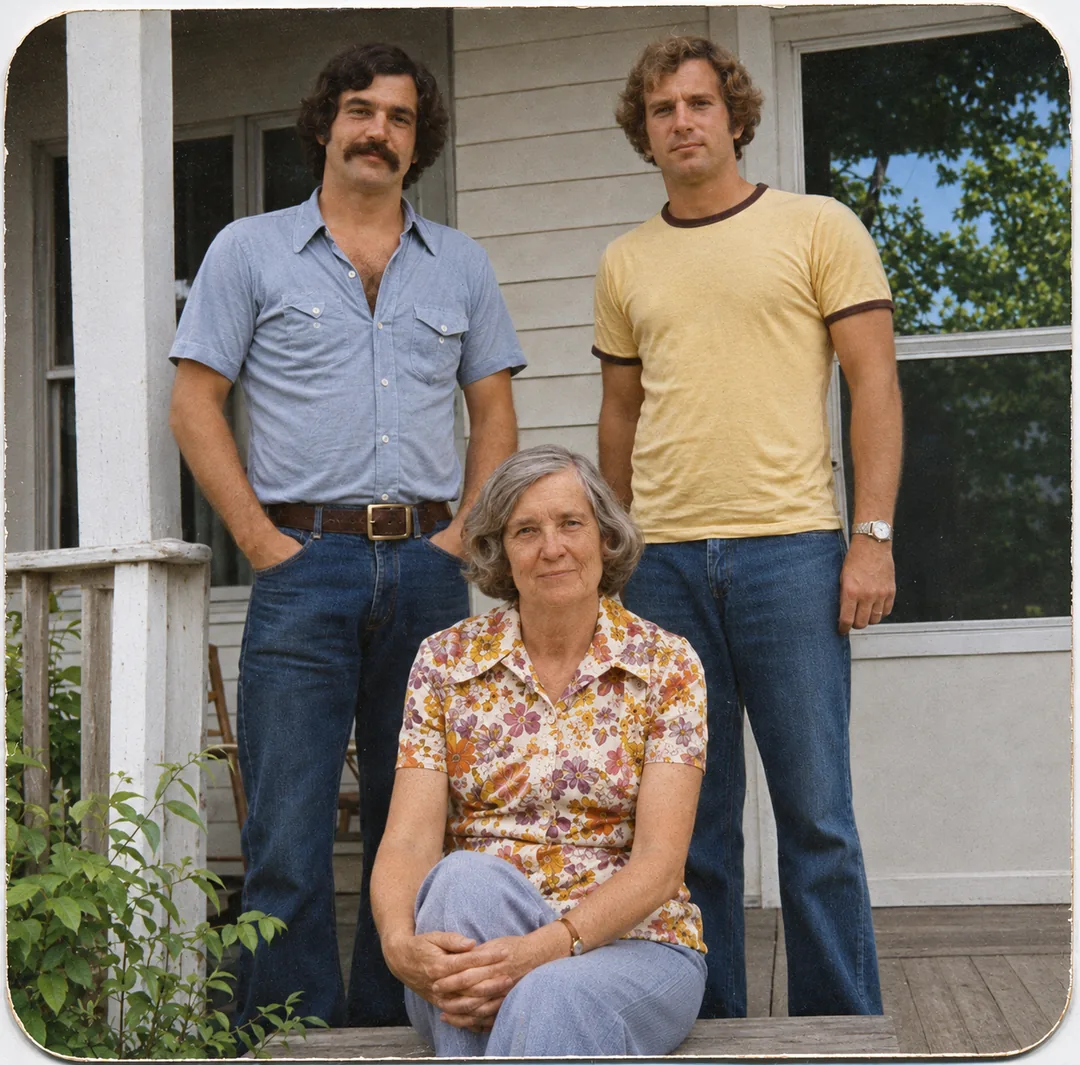
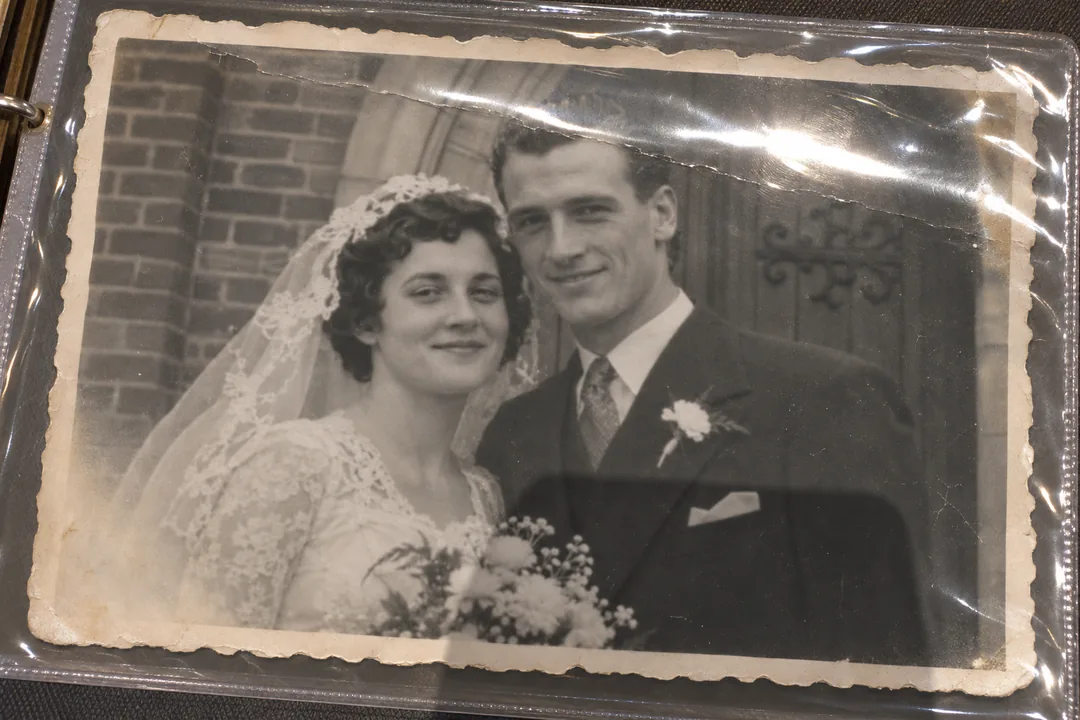
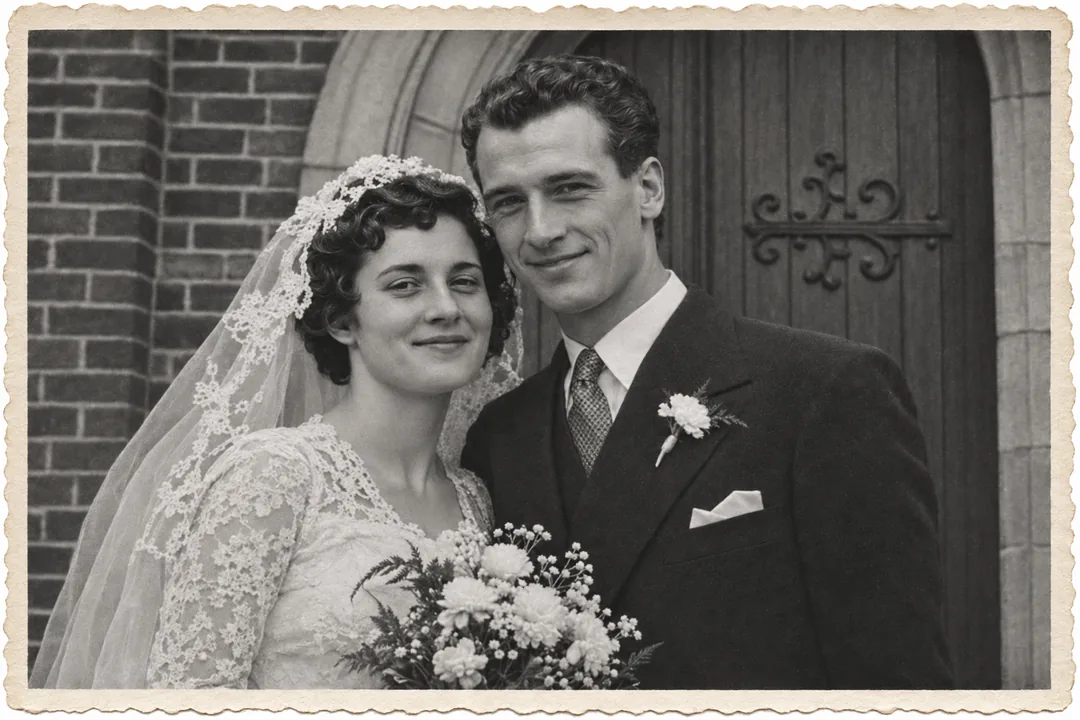
The people are original adult characters, and the “old prints” were generated for this page, not real family photos. Stills: GPT Image 2.5 Flare, made with our sample pipeline from the same instructions as the Restore modes. Clips: restored with GPT Image 2.5 Flare, animated with Seedance 2.0 Fast, 720p, no sound. Last checked .
Scan or photograph the print, upload it here, choose Repair only or Repair + color and press Generate, then download the file, print it or turn it into a video.
Scan at 600 dpi in color, or shoot it flat with a phone in window light. Keep this untouched file as your master copy.
JPG, PNG or WEBP. Add a note if something must stay, such as “keep the background” or “keep her face exactly”.
For a damaged face, run Repair only first and check it. Then press Use result as input and run Repair + color on the repaired copy.
Download the result, print it at the sizes below, or press Turn into video to open Image to Video with your photo as the first frame.
Scan at 600 dpi in color, even for a black-and-white print, with auto fixes off; with a phone, shoot the print flat in window light, out of its sleeve, flash off and square to the paper.
If the print will not come out, open the sleeve if you can, turn off overhead lights and shoot at a slight angle so the window reflection falls off the faces. The album sample above was restored from exactly this kind of photo.
Uploads travel over encrypted connections, personal data is not sold, and content is used for model training only with your explicit consent. Privacy policy →
AI photo restoration is an image edit that clears scratches, dust, creases, stains and fading from a scan and sharpens soft faces while keeping the people and the scene as they were.
Where detail is completely gone, the model fills the area with a guess. Over-processing can make a face look like someone else, so compare the result with the original before you keep it.
Scratches and dust clear in one pass, creases and small tears are filled from the paper around them, and yellowed or faded prints get neutral whites and contrast back.
White lines, specks and fibers clear in one pass. Keep the paper texture if you want the print to still look like a print.
keep the paper texture
Folds and small tears are filled from the paper and picture around them. Check the filled strip against the original, especially across a face.
keep both faces exactly
Pick Repair only to keep the original colors: the yellow or orange cast goes, whites turn neutral and contrast comes back, as in the porch sample.
remove the yellow cast, keep the 1970s colors
Pick Repair + color + sharpen faces. If the face starts to look like someone else, go back to Repair only and sharpen less.
sharpen gently, keep her face exactly
Colorize is a best guess from the scene, so keep the black-and-white copy; then press Turn into video to get a 5-second clip where the couple smiles and turns to each other.
The model predicts color from context: skin, sky, grass, wood and uniforms come out right most often. A dress or a car color cannot be known from a black-and-white print unless someone in the family remembers it, so keep both copies side by side.
Under the result, Turn into video opens Image to Video with your restored photo as the first frame. Ask for one small action, such as a smile, a blink or a head turn, and keep the camera still. MyHeritage's Deep Nostalgia made this popular for family photos in 2021.
Photoshop gives the most manual control, Remini and MyHeritage are face-first apps, Gemini edits by chat, and this page repairs, colorizes and hands the photo to a video model in one tab.
Hand retouching in a free editor costs only time; chat editors such as the Gemini app give a few edits a day. Here each restore uses credits, and the cost shows before you press the button.
For a print with a large missing area or a face you need to rebuild stroke by stroke, manual retouching gives the most control. Many people start with an AI pass and retouch the rest.
Remini and MyHeritage focus on faces and family trees. This page repairs the whole print, background included, and keeps going to color and video in the same tab.
A sharp print needs about 300 pixels per inch, so 1200 × 1800 for 4×6 and 2400 × 3000 for 8×10; the same restored portrait also works as a Vintage Film look or a Day of the Dead portrait.
| Pixels at 300 ppi | |
|---|---|
| 4×6 | 1200 × 1800 |
| 5×7 | 1500 × 2100 |
| 8×10 | 2400 × 3000 |
Free routes exist: hand retouching in a free editor, and chat editors with daily limits. On this page each restore uses credits on this site, and the cost shows on the button before you press it. See pricing →
Yes. Take the print out of the sleeve, lay it flat in window light, turn the flash off and hold the phone square to the paper. A scanner still keeps more detail if you plan to print it large.
It is an informed guess from the scene. Skin, sky and plants come out right most often; a dress or a car color cannot be known from a black-and-white print, so keep the black-and-white copy too.
It can when the face is badly damaged. Pick Repair only first, write "keep her face exactly" in the note, and compare the result with the original before you colorize.
Yes, if the file is about 2400 × 3000 pixels. Scan small originals at 600 dpi or more so there are enough pixels to start with.
Uploads travel over encrypted connections, personal data is not sold, and content is used for model training only with your explicit consent. The privacy policy has the details. Privacy policy →
Small tears and creases, yes. A missing corner is rebuilt from the surroundings, so it is a guess: check that part closely against the original.
For old and damaged photos, yes. It clears scratches and dust, fills creases and small tears, removes a yellow or faded cast and brings the contrast back, and Repair + color + sharpen faces sharpens blurry faces. It repairs the photo you upload; it does not upscale it or add pixels, so scan small prints at 600 dpi or more.
Creating an account is free, and each enhance run is a restore that uses credits on this site; the cost shows on the button before you press it. Free routes elsewhere are hand retouching in a free editor and chat editors with daily limits.
Yes, this page is the image workbench in restore mode. It runs on GPT Image 2.5 Flare by default, and you can switch to GPT Image 2.5 Sunburst or Grok Imagine Image 2.0. Upload a scan or a phone shot of the print, pick Repair only, Repair + color or Repair + color + sharpen faces, and press Generate; the result can go on to Turn into video.